Providers
Nearly every API
Anthropic Claude, OpenAI, Google Gemini, Alibaba Qwen, DeepSeek, Mistral, Groq, xAI, OpenRouter, Together, Moonshot, Zhipu, plus Ollama, LM Studio and llama.cpp on your own machine.
Connect Claude, OpenAI, Gemini, Alibaba Qwen, DeepSeek, Ollama or any compatible endpoint. The assistant sees only what you attach, and nothing changes until you press Apply.
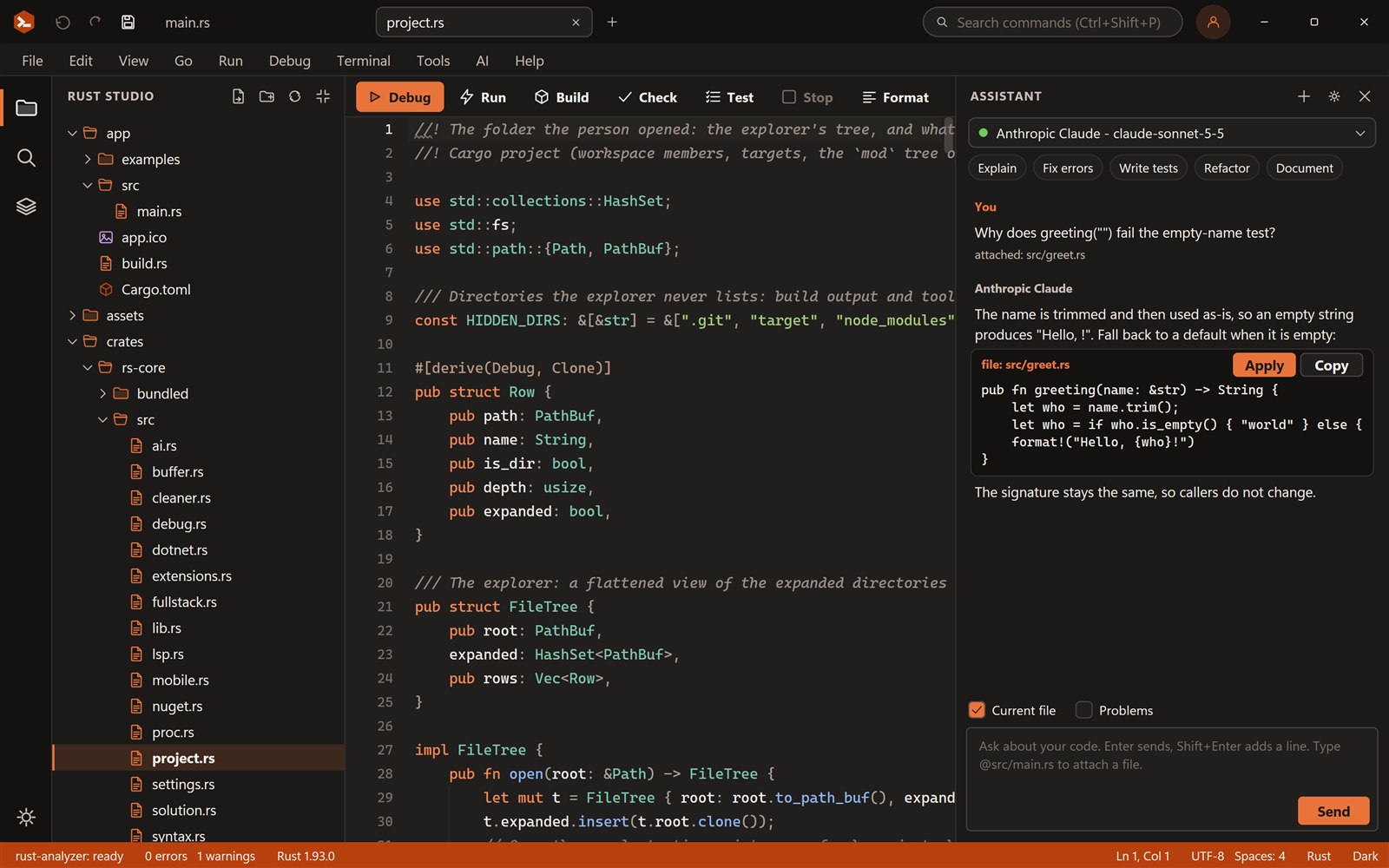
Choose a provider, use a quick action, and press Apply. One undo step puts it back.
fn average(values: &[f64]) -> f64 {
    let mut sum = 0.0;
    for i in 0..values.len() {
        sum = sum + values[i];
    }
    sum / values.len() as f64
}
Model: claude-sonnet-5-5 · your key stays on your PC
Pick a quick action or ask a question. This demo answers with prepared text; the installed assistant calls your provider.
Try it: switch provider, press Fix errors, then Apply and Undo. Or type “write tests”.
Providers
Anthropic Claude, OpenAI, Google Gemini, Alibaba Qwen, DeepSeek, Mistral, Groq, xAI, OpenRouter, Together, Moonshot, Zhipu, plus Ollama, LM Studio and llama.cpp on your own machine.
Context
The open file, your selection, current problems, or files you mention with @src/main.rs. Nothing else is sent.
Safe edits
Code arrives in blocks. Apply puts it in your editor as a single undo step and writes nothing to disk until you save. Paths outside your project are refused.
Quick actions
One click on the open file or your selection, with problems included for Fix errors.
Privacy
Keys are stored in your user settings, or read from an environment variable if you write env:NAME as the key. There is no Rust Studio server in the middle.
Different teams trust different models, and some code cannot leave the building. Rust Studio speaks three API formats, the Claude Messages API, the OpenAI chat format and Google Gemini, which together cover almost every hosted and local model server, so switching provider is a dropdown, not a new tool.
Responses stream as they are written. Code blocks that name a file in your project get an Apply button; other snippets can be inserted at the cursor or copied.
Tools, AI, AI Providers: pick one from the list, paste a key (or env:NAME), choose a model.
Test connection sends one tiny request and tells you if the key and model work.
Ctrl+Shift+I opens the panel. Attach the file, add problems, or mention other files.
Read the suggestion, press Apply, and undo with Ctrl+Z if you change your mind.
Yes. Ollama, LM Studio and llama.cpp server presets are included, and no API key is needed.
No. It only suggests. A change reaches your editor when you press Apply, and your disk when you save.
In a file in your user settings folder, or in an environment variable if you use env:NAME. Rust Studio never sends them anywhere except to the provider you configured.
Yes. Rust Studio is free for personal and commercial use, with no account, trial or licence key. It is closed-source freeware.
Windows 10 and 11 (64-bit). You can build for Windows, the web and Android from it. iOS builds need a Mac with Xcode.
Rust Studio is a free, native Rust IDE for Windows: rust-analyzer, solutions with many projects, full-stack web templ…
Build full-stack Rust web apps in Rust Studio: an axum backend with a React, Vue, Svelte or Angular front end, a dev…
Rust builds use gigabytes. The Cargo Cleaner in Rust Studio finds every target folder and cargo cache, shows size and…
Download Rust Studio, the free Rust IDE for Windows 10 and 11. Per-user install, no administrator rights, no account,…